728x90
배경 이미지 넣기
JPanel에 이미지 넣기
- JPanel은 paint() 메소드를 실행할 떄 자신의 paintComponent() 메소드를 먼저 호출하고, 자식 컴포넌트의 paint() 메소드를 나중에 호출하도록 되어 있습니다.
- 배경 그림은 모든 자식 컴포넌트보다 먼저 드로잉되어 자식 컴포넌트 밑에 깔려야 하므로, paintComponent() 에서 배경 그림이 드로잉 되어야 합니다.
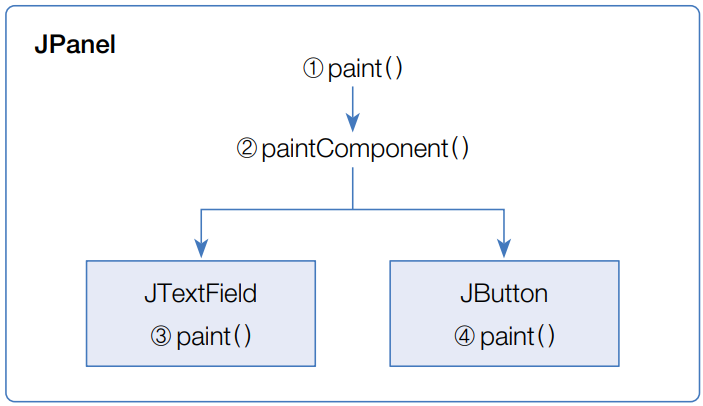
다음 예제는 JPanel에 배경이미지를 드로잉 하여 JTextField와 JButton이 배경이미지 위에 배치되도록 합니다.
package java0220;

import java.awt.*;
import javax.swing.*;

public class BackgroundImageExample extends JFrame {
	private JTextField txtId;
	private JButton btnLogin;

	//메인 윈도우 설정
	public BackgroundImageExample() {
		this.setTitle("배경 그림 넣기");
		this.getContentPane().add(new MyPanel(), BorderLayout.CENTER);
		this.setSize(200, 270);
		this.setResizable(false);
		this.setDefaultCloseOperation(JFrame.EXIT_ON_CLOSE);
	}

	//JPanel 클래스 선언
	public class MyPanel extends JPanel {
		public MyPanel() {
			setLayout(null);

			//JTextField와  JButton 부착
			add(getTextField());
			add(getButton());
		}

		@Override
		public void paintComponent(Graphics g) {
			// 배경 그리기
				ImageIcon icon = new ImageIcon(this.getClass().getResource("bg.jpg"));
				g.drawImage(icon.getImage(), 0, 0, this);
		}
	}

	//JTextField 생성
	public JTextField getTextField() {
		if(txtId == null) {
			txtId = new JTextField();
			txtId.setBounds(50, 50, 100, 30);
		}
		return txtId;
	}

	//JButton 생성
	public JButton getButton() {
		if(btnLogin == null) {
			btnLogin = new JButton("버튼");
			btnLogin.setBounds(50, 100, 100, 30);
		}
		return btnLogin;
	}

	public static void main(String[] args) {
		SwingUtilities.invokeLater(new Runnable() {

			public void run() {
				BackgroundImageExample jFrame = new BackgroundImageExample();
				jFrame.setVisible(true);
			}
		});
	}
}
728x90
'JAVA > Swing' 카테고리의 다른 글
| 기본 도형 그리기.Swing (0) | 2023.02.20 |
|---|---|
| 이미지 그리기.Swing (0) | 2023.02.20 |
| 안티 알리아싱(Anti-aliasing).Swing (0) | 2023.02.20 |
| Color와 Font.Swing (0) | 2023.02.20 |
| Canvas와 Graphics.Swing (0) | 2023.02.20 |